UtilityControl keeps your meters, readings, bills and costs in one place, on the web and on iPhone, iPad and Mac. This short guide covers everything the app does.
Getting started
- Create an account on the web or in the app with your e-mail address and a password of at least 10 characters, or sign in with Apple or Google. We send a link to confirm your e-mail address; click it once and you are in.
- Add a location: a home, a flat, a building or a site.
- Add a meter to it: electricity, water, gas or heating.
- Add readings by typing them, scanning the meter with your iPhone, or importing a CSV file.
The web app and the apps share one account and show the same data. The free plan needs no credit card.
Locations and meters
A location is where meters are: a property, a building or a facility. Each location lists its meters with their latest readings, so you can see everything at a glance. A meter has a name, a type (electricity, water, gas or heating), a unit, a meter number and the cost per unit with its currency, which is used for the cost charts.
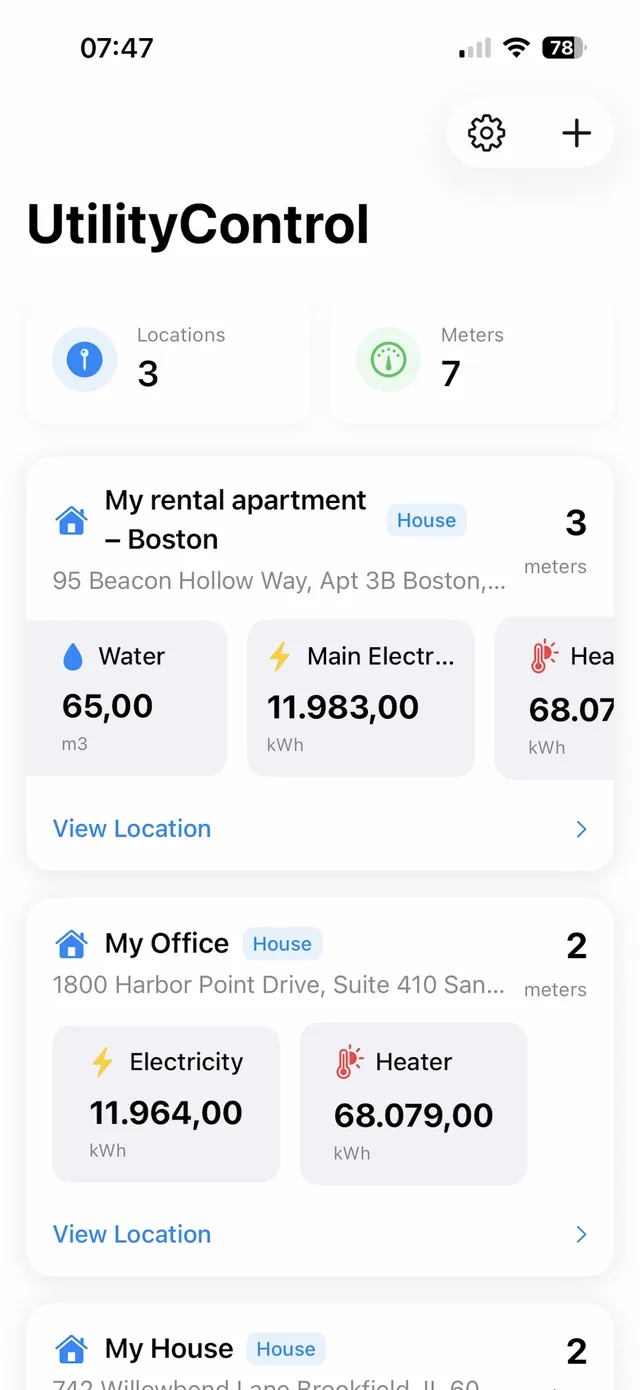
You can edit or delete a location or meter at any time. Deleting a meter removes its readings.
Readings
Type a reading
Open a meter, choose Add reading, enter the date, the value and, if you like, a note. Older dates are fine, so you can fill in the past.
Scan the meter with your iPhone
With UtilityControl 4.2 and later you can photograph the meter instead of typing. The app reads the meter number and the reading on your phone, offline. You check the result, correct it if needed and save it. If the meter is already in the app, the reading goes to it; a new meter number can be added as a new meter.
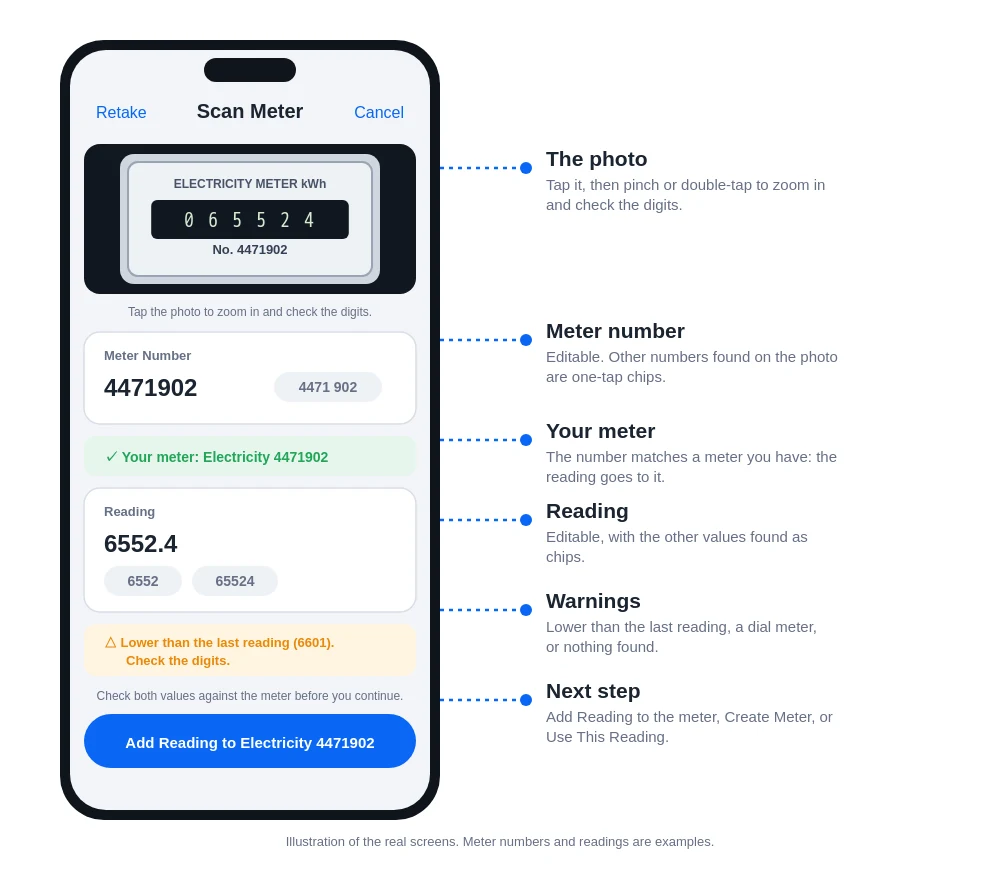
- The free plan includes 3 scans a day.
- Meters with pointer dials cannot be read yet: type those.
- Hold the phone steady and avoid glare on the display. A scan never saves anything without your check.
Import and export CSV
Import a meter's history from a CSV file. European and US number formats and common date formats are read correctly, and rows that cannot be read are reported instead of being skipped silently. Export your readings any time: one CSV per meter, or a ZIP with a file for every meter of a location.
Charts and costs
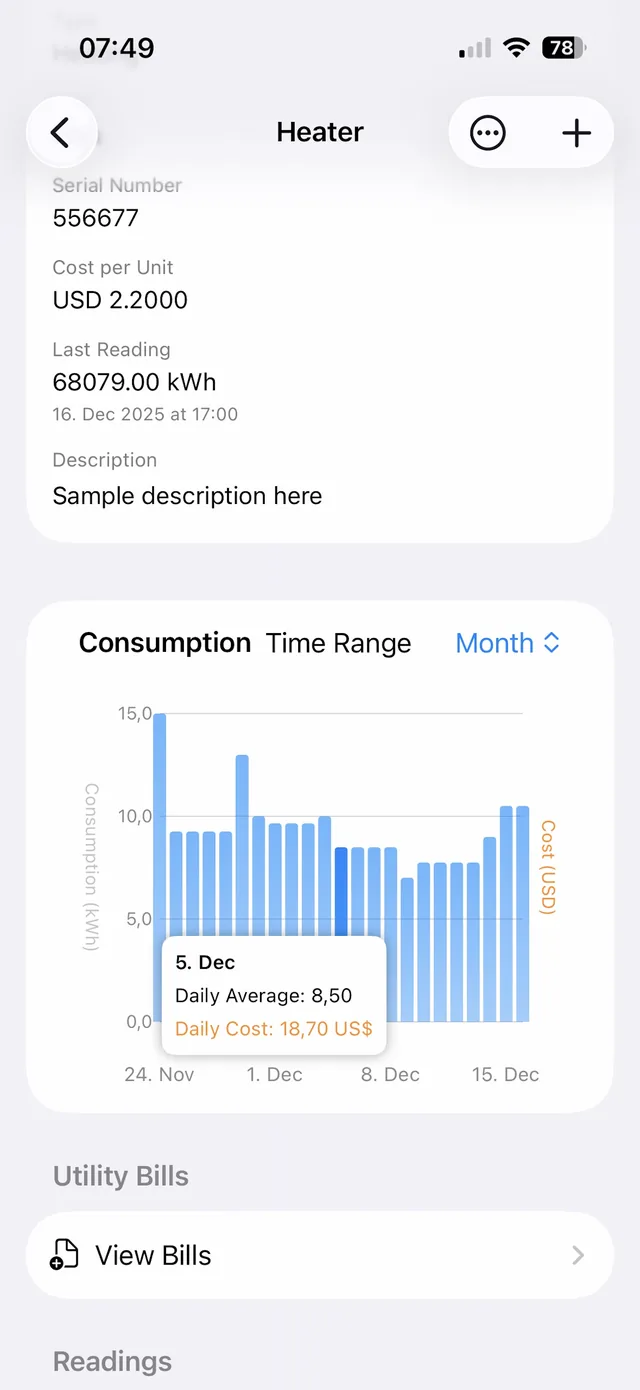
Each meter has three charts: Usage Over Time, Daily Usage and Daily Cost. Filter them by week, month, two or three months, or year.
- Daily values are interpolated between readings, so you get a value for every day even if you read the meter only now and then.
- Cost is the daily usage times the cost per unit you set for the meter.
- A sudden rise in daily usage can be an early sign of a leak or a fault. Check the meter when you see one.
Bills
Upload a photo or a multi-page PDF of a utility bill. The app reads the dates, amounts, usage, account numbers and billing period, and shows a confidence score for each value. Correct anything that is wrong before you save.
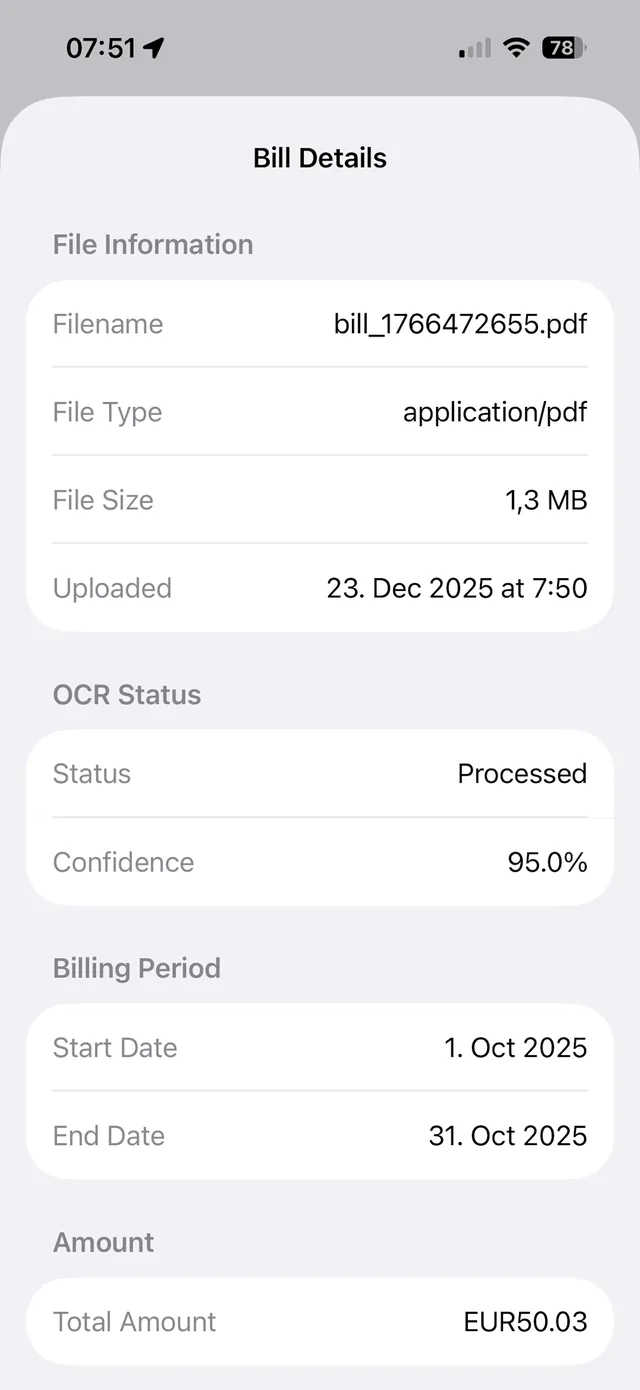
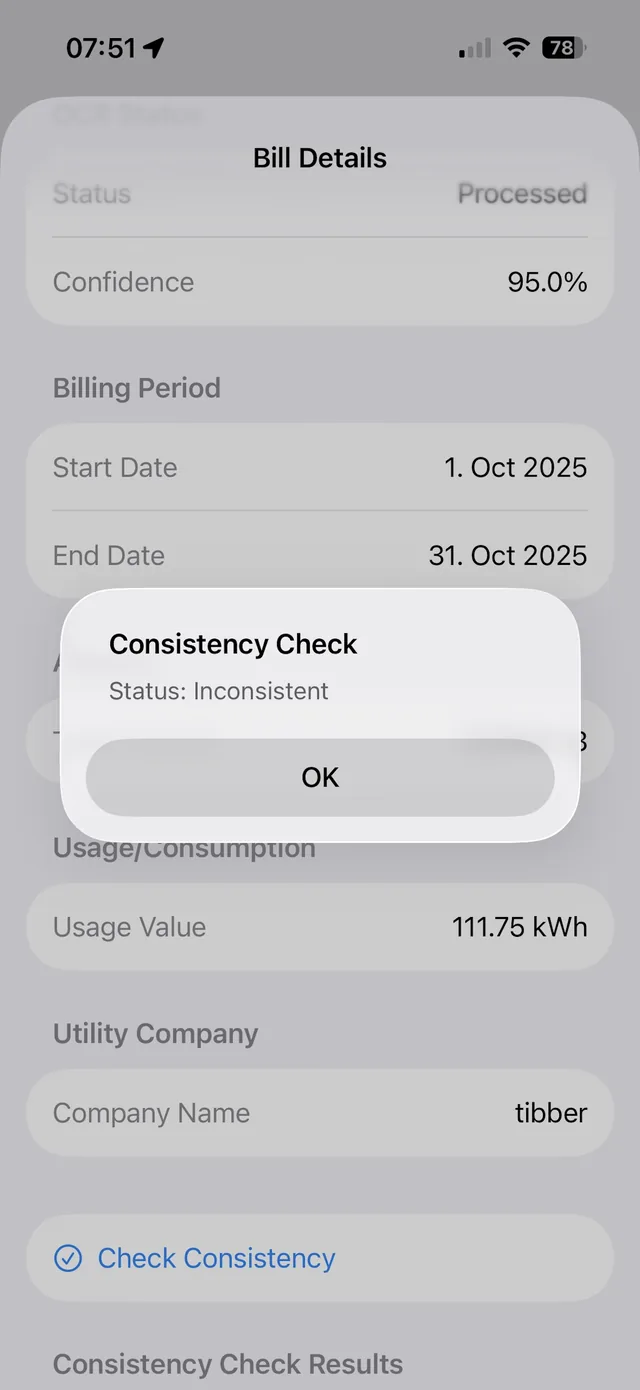
The consistency check compares the usage on the bill with your own meter readings for the same period. A difference is flagged, so you can question a possible billing error before you pay.
Chat assistant
Ask in plain language, for example "What is my usage this month?" or "Which meter costs the most?". The AI-based assistant answers from your own meter data. Quick questions are suggested to get you started.
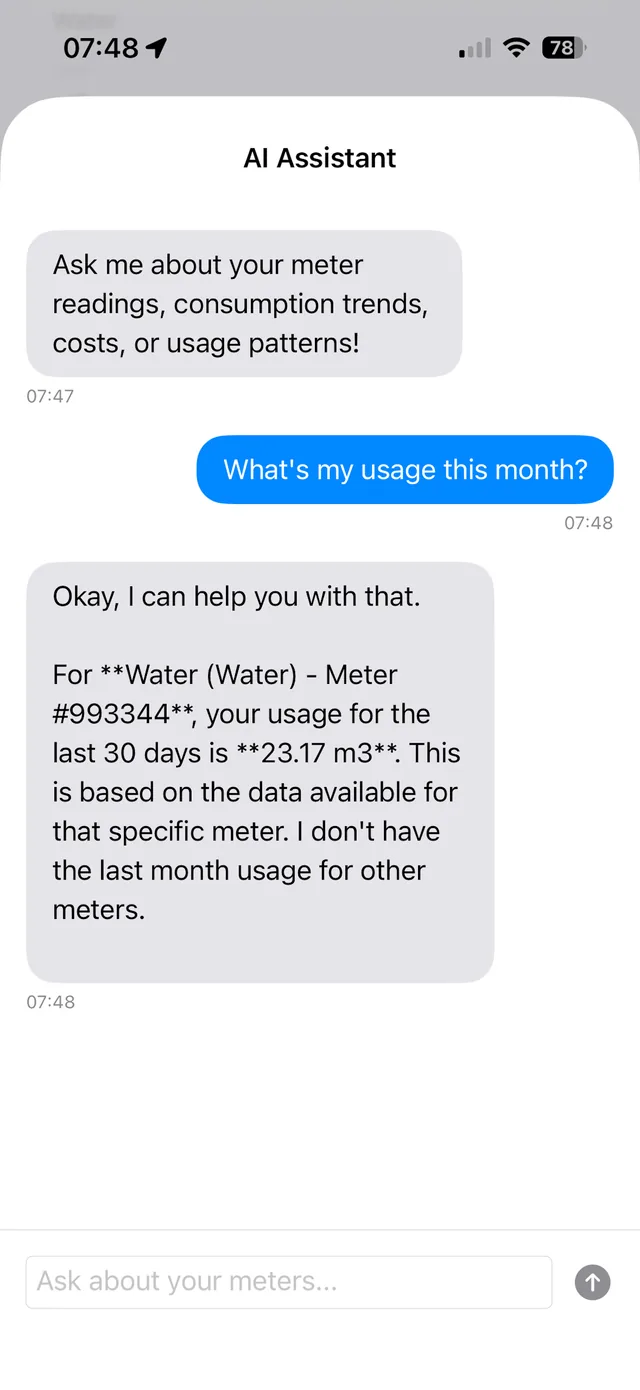
The assistant helps you read your data; check important figures against the meters and bills themselves. The number of messages per month depends on your plan.
Plans and limits
| Plan | Locations | Meters | Readings | Bill uploads / month | Chat messages / month |
|---|---|---|---|---|---|
| Free | 1 | 3 | 50 in total | 3 | 10 |
| Standard (€4.99 / month) | 2 | 5 per location | Unlimited | 50 | 60 |
| Pro (€39.99 / month) | Unlimited | Unlimited | Unlimited | 500 | 200 |
| Enterprise | Unlimited | Unlimited | Unlimited | Unlimited | Unlimited |
See Pricing for the current prices and what each plan includes. Subscriptions in the iPhone app are managed through your Apple ID.
Account and data
- Password: change it in the app or on the web. If you forgot it, choose Forgot password on the sign-in page; the link in the e-mail works once.
- E-mail address: change it on the web, in your account menu. We send a link to the new address; once you confirm it, all your locations, meters, readings and bills move to it, and other sign-ins end.
- Export: download your readings as CSV any time (see Readings).
- Delete account: in the app or on the web, with your password. Everything is deleted right away. Copies in our backups are removed as the backups roll over, within six months.
The privacy policy explains what is stored and why.
Questions
Which devices does it run on?
In any browser, and as an app for iPhone, iPad and Mac. Android is coming.
Do I need special hardware?
No. You type, scan or import readings from the meters you already have.
The app asks me to update.
Older app versions are no longer supported. Open the App Store, update UtilityControl, and your data is there as before.
Is UtilityControl the same as EnergyOS?
No. UtilityControl tracks readings, bills and costs. EnergyOS manages energy systems and devices. They are separate accounts; see the EnergyOS documentation.
Something does not work.
Contact us and tell us what you did and what you saw.